"The Wi-Fi is slow" is one of the most common complaints in any office. The usual reaction is to add another router or a more powerful access point, and the usual result is that nothing improves. Poor wireless performance is almost always a design problem, and it is solved by design.
This guide explains the decisions that make the difference between Wi-Fi that looks fine on a signal meter and Wi-Fi that works when the whole team is online.
Design for capacity, not only coverage
Coverage answers the question "can I see the network here?" Capacity answers "can everyone here use it at the same time?"
A single access point can cover a large open office, but every device connected to it shares the same airtime. Thirty people on video calls in one meeting room need far more capacity than thirty desks spread across a floor. Start the design by listing how many people and devices will be in each area and what they will be doing.
Begin with a site survey
Walls, glass partitions, metal shelving, lift shafts and neighboring networks all change how radio signals behave. A site survey records these conditions before any equipment is ordered.
A good survey produces:
- A floor plan with proposed access point locations
- Notes on wall and ceiling materials and cable routes
- A list of existing networks and sources of interference
- The number of access points and switch ports required
Without a survey, access point placement is guesswork, and guesswork is expensive to correct after the ceilings are closed.
Choose bands and channel widths carefully
The 2.4 GHz band travels further but has only three channels that do not overlap: 1, 6 and 11. Using any other channel creates interference with neighbors on both sides. In a busy office, treat 2.4 GHz as a fallback for older devices.
The 5 GHz band offers many more channels and is where most business traffic should run. Wider channels promise higher speeds, but they also reduce the number of channels available. In dense deployments, 20 MHz or 40 MHz channels usually give better overall performance than 80 MHz, because neighboring access points are not competing for the same airtime.
Set transmit power deliberately
Turning every access point up to full power feels safe, but it causes two problems. Access points start to interfere with each other, and devices can hear an access point that cannot hear them back, because phones and laptops transmit at much lower power.
The better approach is more access points at moderate power, with cells that overlap just enough for devices to move between them.
Plan for roaming
Devices, not access points, decide when to roam, and many hold on to a weak signal for too long. This "sticky client" behavior is what makes calls drop as people walk through the building.
Several measures help:
- Keep a modest overlap between neighboring cells
- Enable the roaming standards 802.11k, 802.11v and 802.11r where your devices support them
- Disable the lowest data rates so that devices let go of distant access points sooner
- Use one centrally managed system, not a mix of standalone routers
Test roaming the way people use it: walk the corridors on a voice or video call.
Do not forget the wired side
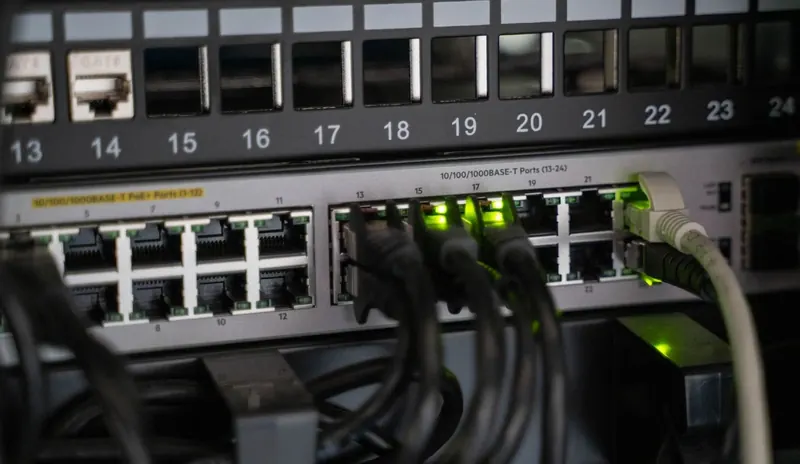
Wi-Fi is the last few meters of a wired network. Each access point needs a cable run, a switch port and power.
- Cabling: Cat6 is suitable for most access points. Cat6A is worth considering for high-density areas and multi-gigabit access points. See our structured cabling services.
- Power: check that the switch's PoE budget can power every access point at once, with headroom.
- Uplinks: modern access points can deliver more than one gigabit, so switch uplinks and the internet link need to keep pace.
A fast wireless network connected to an overloaded switch is still a slow network.
Secure and separate the networks
Give staff individual logins through WPA2-Enterprise or WPA3-Enterprise, so access can be removed for one person without changing a shared password. Put visitors on a guest network that is isolated from internal systems, and place printers, cameras and other devices on their own VLAN.
The firewall should control traffic between these networks. Our network security services cover this segmentation.
Validate after installation
A design is a prediction. After installation, measure the real result: walk the site, check signal and speed in each area, test roaming and confirm that the guest network cannot reach internal resources. Small adjustments to channels and power at this stage make a noticeable difference.
Keep monitoring after handover. New walls, new neighbors and new devices all change the radio environment over time.
Common mistakes to avoid
- Adding consumer routers or range extenders to fix dead spots
- Mounting access points above metal ceilings or inside cabinets
- Leaving every access point on automatic maximum power
- Using wide channels in a dense office
- Sharing one password among all staff and visitors
- Ignoring the switches and cabling behind the access points
Getting it right the first time
Reliable Wi-Fi comes from planning: understand the users, survey the site, design for capacity, build a solid wired foundation and verify the result.
Arqi Networks designs and installs enterprise WiFi solutions for offices, campuses and warehouses across Pakistan. If your current network is underperforming, we can start with an audit and tell you what will fix it.